

Q I suspect that an item value is wrong in certain documents. I have scanEZ opened on a database, but I am not sure how to start checking my documents for the item value. How can I quickly see the values for a specific item in my documents?
A Although there are a few different was to analyze item values in scanEZ, a quick-and-painless way to see all the values for an item right away is by changing the displayed title for your documents in the selection tree. You can set them to show the value for a given item for each document, letting you quickly see what you have to concentrate on.
Before you begin:
The steps below assume that you have already opened scanEZ on the database that you need to work on. See this simple tutorial to learn how to open scanEZ on a database.
Instructions
Set the displayed title to show an item value
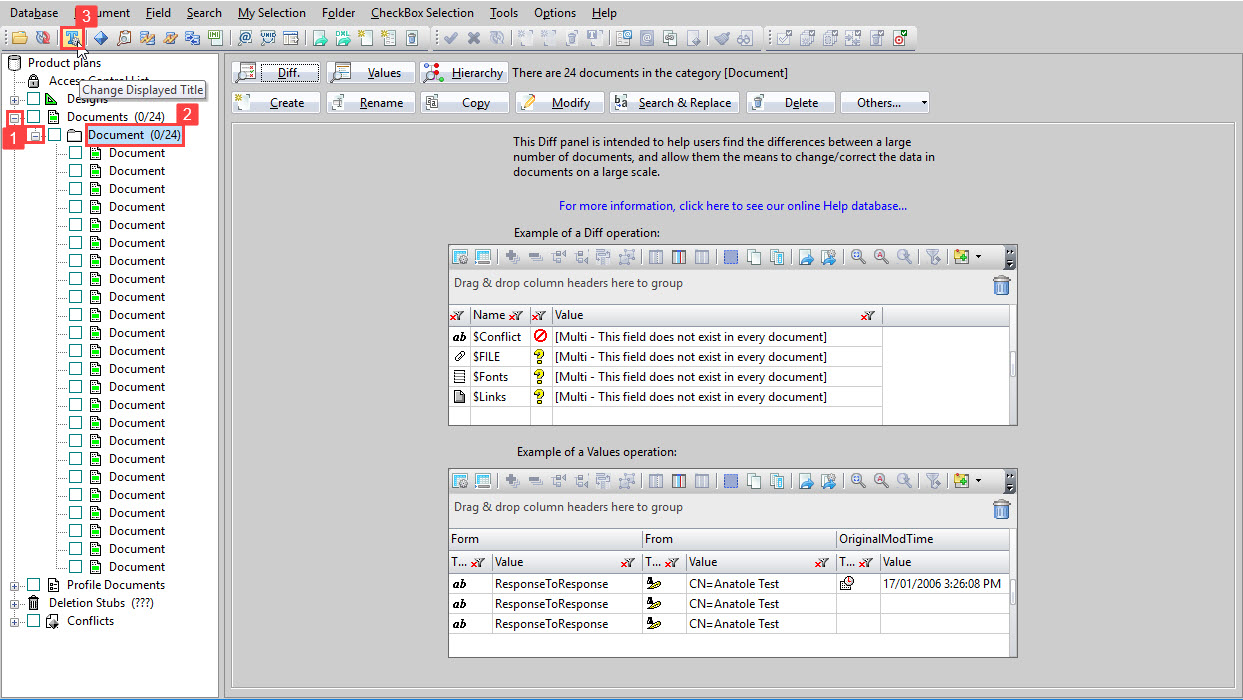
Step 1 Expand both the 'Documents' tree category and the sub-category 'Document'.
Step 2 Set the focus on the 'Document' sub-category by clicking it.
Step 3 Click the 'Change Displayed Title' toolbar button. You can also use the context menu option or Ctrl + T.
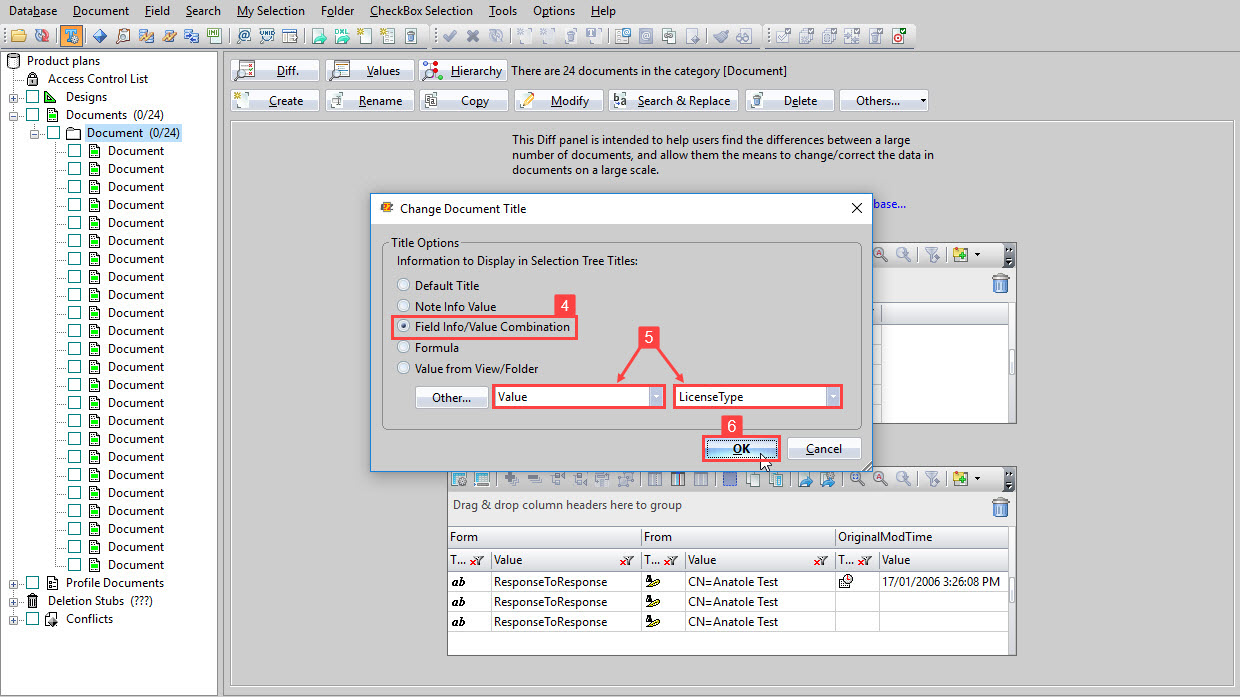
Step 4 In the 'Change Document Title' dialog, choose option 'Field Info/Value Combination'.
Step 5 Choose 'Value' in the first drop-down list, and the name of your desired item in the second.
Step 6 Click 'OK'.
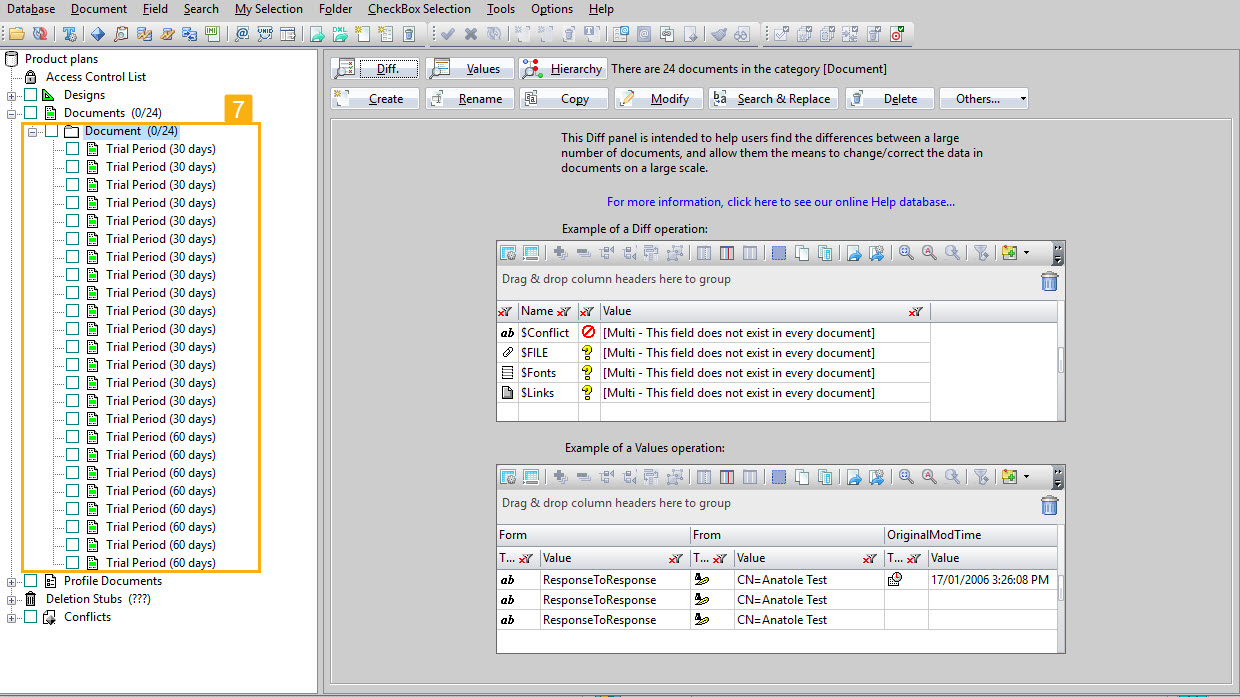
Step 7 The displayed selection tree titles for your documents now show the value for the item 'LicenseType' for all documents.